
Reports turn tracked time into something you can send: a timesheet, an invoice line, a spreadsheet, or a link.
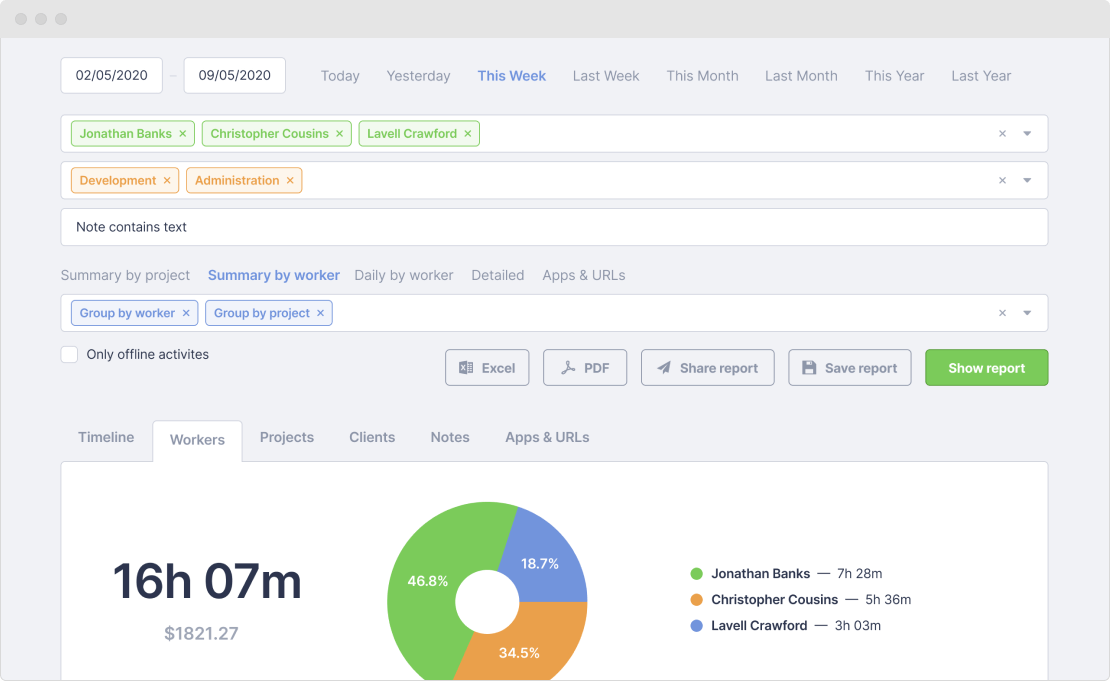
Filters
Filter a date range by person, group, project, client, or the text of a note. You can also show only offline entries, leave archived projects out, or include absences. The Help Center walks through how reports work.
Groupings
Then group the result the way you need to read it.
| By person | Who worked how much. For payroll and the weekly check-in. |
|---|---|
| By date | A timesheet in the format most clients expect on an invoice. |
| By project or client | What a piece of work cost, in hours and in money. |
| By task or note | The detail line, for when someone asks what those six hours were. |
| By Apps & URLs | Where the time actually went, ranked. See Apps & URLs. |
Exports
- Excel (.xlsx) — for pivot tables, for payroll, for building an invoice.
- PDF — for sending to someone who will not open a spreadsheet.
- A shared link — read-only, and no account needed at the other end. You choose what travels with it: screenshots, money, activity levels, applications and websites.
Scheduled email reports
Save a report and put it on a schedule — daily, weekly or monthly — to a list of email addresses. The client who asks every Monday morning stops asking.
More features
All features · How it works · Plans & pricing
Start tracking for free
No credit card required.